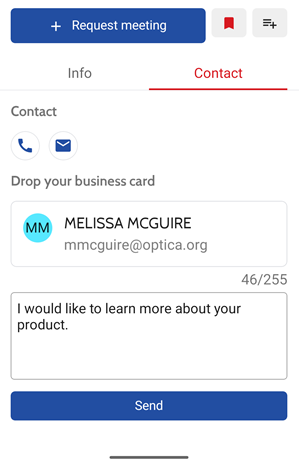
OFC 2026 has a new mobile app.
- Chat with customers.
- Set up apointments.
- Collect business cards.
New for 2026 - On site assistance - Chat with an app expert to update your profile, set up your access or answer any questions.
Did you receive an invitation to be a representative?
If you have received an invite to be a representative for a company, you will have access to a backstage dashboard with multiple features and settings.
Important - invitations are only sent to users with public event contacts in Map Your Show. Please update your profile in Map Your Show.
In order to access the dashboard, just click the link from the invite you received.
This link opens your personal dashboard of this event's app, which looks like ofc2026.floq.live. The dashboard lists all your affiliated companies.
Click in the top right corner to update your profile and allow customers to contact you.
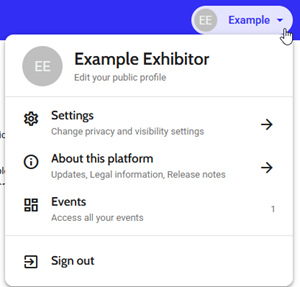
Click 'Edit your public profile' to change what other exhibitors and attendees see, change your password or delete your account.
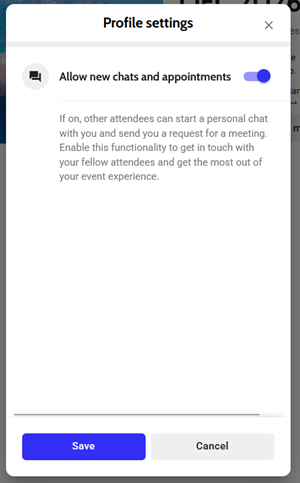
Click 'Settings' and toggle 'Allow new chats and appointments' to allow direct messages and apointment requests.
Don't forget to click 'Save'!
Download the App
OFC 2026 is using a new app. If you have the 2025 app installed you will need to delete it and install the new one. More information is on the OFC Moble App page.
Using the App
Logging In
The first time you open the app you will be prompted to login. Logging in is not necessary to use many features of the app but is required for the exhibitor features.
IMPORTANT: Login using the email address used when registering for OFC and coordinating with the booth sales department. This must be the email address that received the email above to use the interaction features.
Finding Your Booth
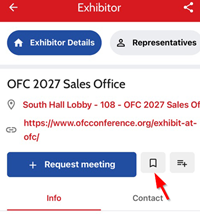
Click 'Exhibition' on the bottom of the screen. Click 'Exhibitors and Sponsors' and search for your booth. Click on the booth.
Tip- click the 'save' icon on the booth. This will make it a short cut on your profile and easier to access.
Interacting with Attendees
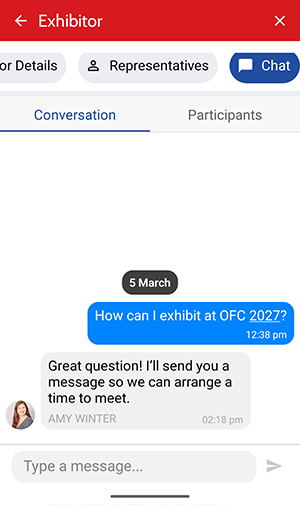
Attendees can post in your public chat. This is visible to all logged in users.
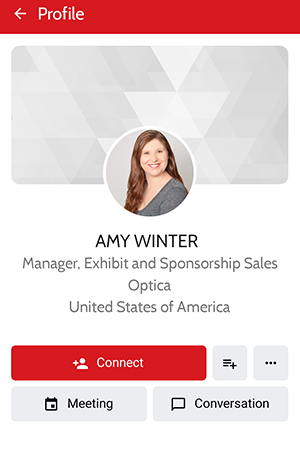
Attendees can connect with you by clicking 'Representatives' and clicking 'Connect'. You will receive a message that someone wants to connect with you. This will add them to your contact list and allow you to chat.
Once connected click on the attendees name and click 'Conversation' to start chatting.
Schedule a Meeting
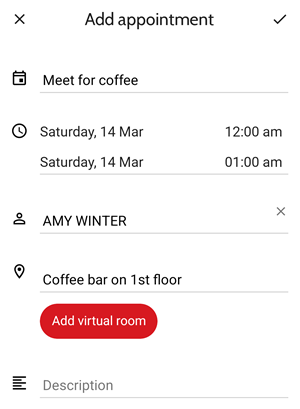
Click 'Meeting' to set up a meeting in person or virtual.
Fill out the fields, invite attendees, create a new virtual room or meet in person.
Collecting Business Cards
If enabled, attendees can opt to send their contact information directly to you in the app. This information will be sent via email to the first email listed on the event contact list. Contact exhibits@ofcconference.org or the onsite app help to enable the cards or change the email address.