Access the OFC App




Important- OFC 2026 Has a New App!
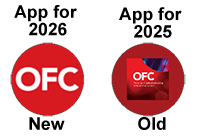
Your app must be up to date to access all the great new features and 2026 schedule. If you attended OFC 2025 you will need to delete that app and install the new one.
How can I tell? Check the icons:
Know What's App-ening at OFC
Use the conference app to plan your day. Search for technical presentations; explore the Exhibition by viewing a list of exhibitors and show floor programs; and network with attendees. You can use most of the app features even if you haven't yet registered.
Access Technical Papers
Full technical registrants can navigate directly to the technical papers right from the app To access a Technical Paper, find the session or talk in the Event Schedule and click on the "Download PDF" link that appears in the description.
Plan Your Day With the Full Conference Program
Search for conference presentations by day, topic, speaker or program type. Plan your schedule by setting bookmarks or clicking "Add to Schedule" on programs of interest. Technical attendees can access technical papers within session descriptions.
Explore the Exhibition
Search for exhibitors in alphabetical order or by categories, and set a bookmark reminder to stop by their booth. View a daily schedule of all activities occurring on the show floor.
Using the OFC 2026 App
Downloading the App
Click on a link on the top of this page or search for OFC Conference in the app stores.
Your app must be up to date to access all the great new features and 2026 schedule. If you attended OFC 2025 you will need to uninstall that app and install the new one.
How can I tell? Check the icons:
Setting up the App
You do not need to be logged in to use the OFC app. Logging in does have many benefits including networking, syncing across devices and chatting with other attendees and exhibitors.
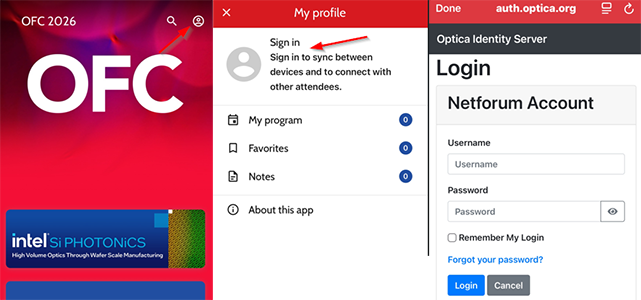
- Click the small circle in the top right corner.
- Click 'Sign In'
- For the best experience log in using the email address and password used when registering for OFC 2026. *If the app hangs on the log in screen, close the app entirely and try again. If that does not resolve the issue, delete and reinstall the app.
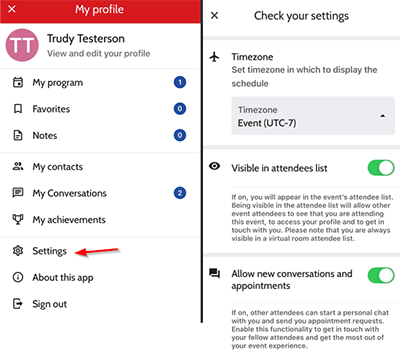
- Click 'Check Profile and Settings' to check your visible name, company, add a biography, contact info and social links. Note: Name and company are fed from your registration data.
- Edit your 'settings' to set the preferred display time zone, show or hide yourself from the attendee list, and allow direct contacts from other attendees and exhibitors.
Navigating the App and Planning Your Day
- The app home screen includes
- Search - a full search of all events, presentations, speakers, exhibitors, and more.
- Conference Program - the full schedule including technical programming.
- Exhibition Program - the exhibition program open to technical and EPP registrants.
- My Schedule - your personal schedule.
- Networking - connect with other attendees.
- Floor Plans - interactive maps of the convention center.
- From search or schedule click on an event to see more details including linked presentations, and paper links (for presentations).
- Click the 'save' button to add the event to your schedule.
- In a Program view
- Click the magnifying glass to toggle the view from list (details) to horizontal (time block), search and filter by track and topic.
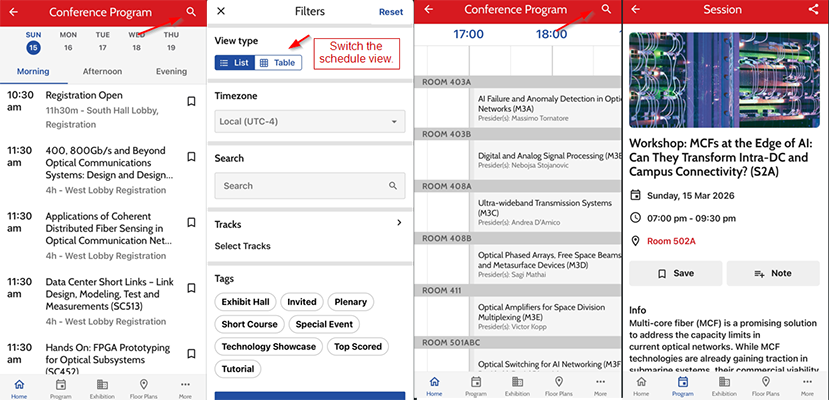
- Click the magnifying glass to toggle the view from list (details) to horizontal (time block), search and filter by track and topic.
- Click on My Schedule on the main screen to see just your saved events.
Networking
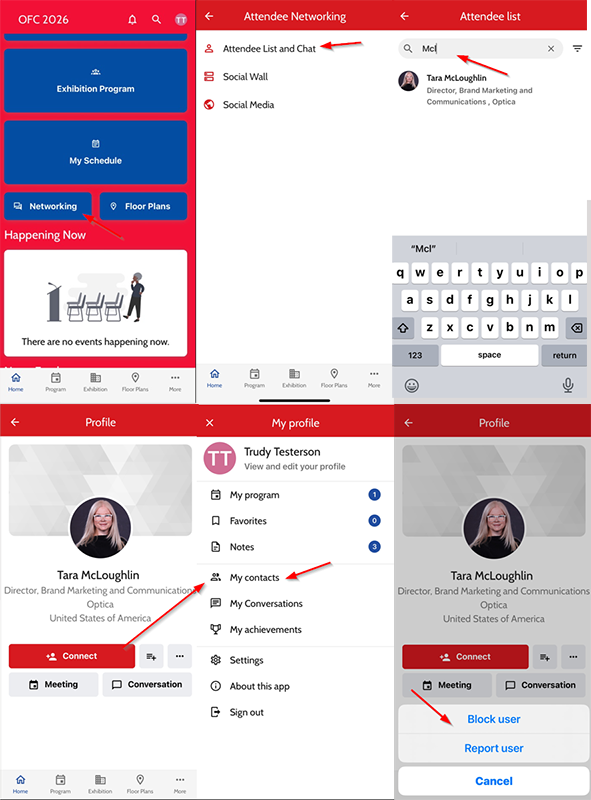
- On the home screen click 'Networking'.
- Click 'Attendee List and Chat'.
- Search for the attendees name.
- Click their listing.
- Click 'Conversation' to chat.
- Click 'Connect' to add them to your 'Contacts List'.
- Click 'Meeting' to propose a meeting.
- To block or report a user click the three dots to the right of 'Connect' and click 'Block User' or 'Report User'.
Taking Notes
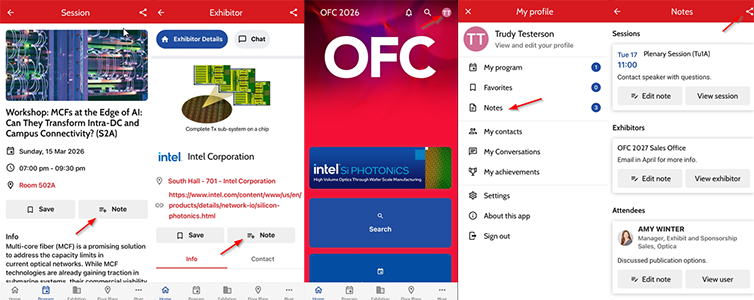
- Click the Note button on any event, exhibitor or attendee page to add a private note.
- Export the notes by returning to the home screen, clicking your initials in the top right corner, clicking 'Notes' and clicking the export button.